Windows 10 - Set up Extended Desktop
Are you Connected?
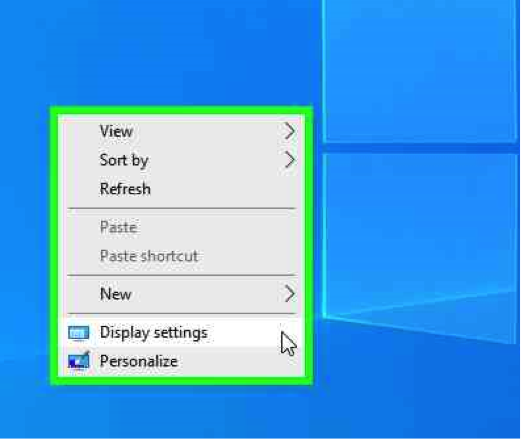
Using the mouse, Right click on the Desktop select ” Display Settings”
Straight To IT tip
If “Display Settings” is not shown – check the cables.
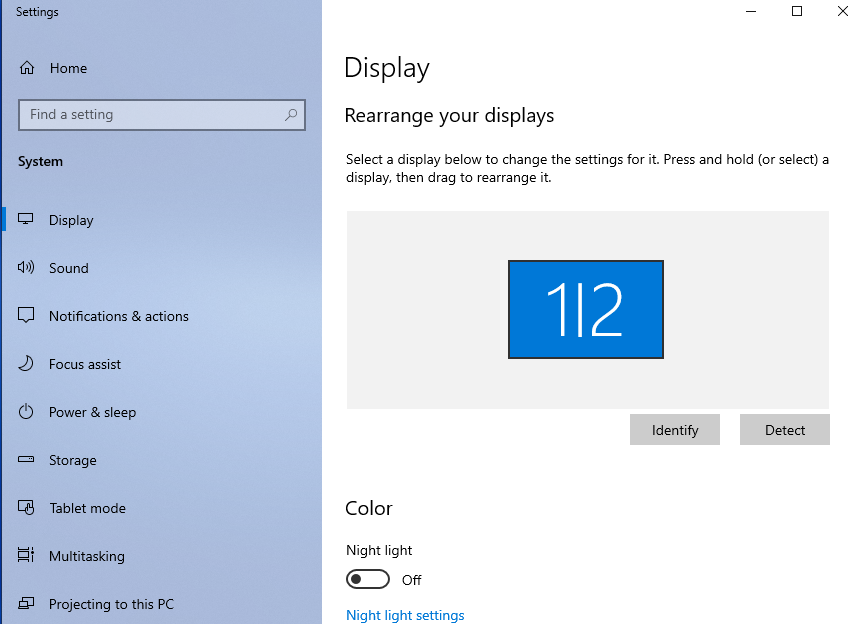
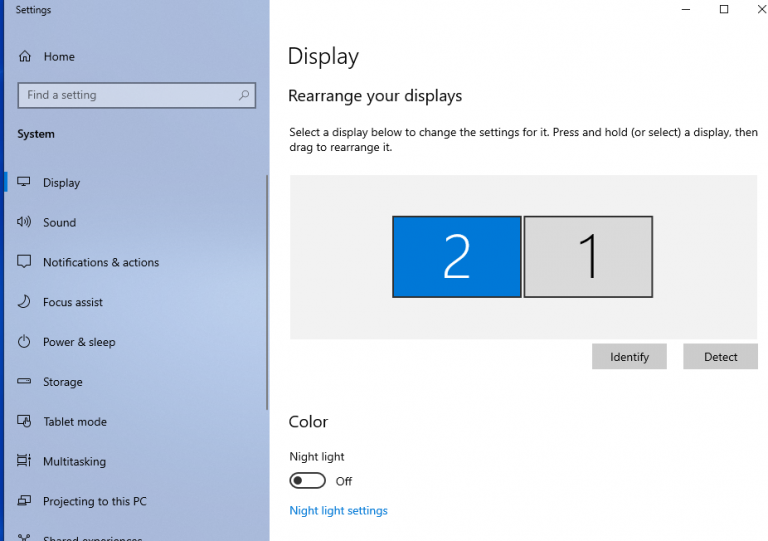
Identify – will show a number on each of the connected screens so you know which number represents the physical screen its shown on.
Detect – to check for connected monitors.
Position Monitors
Using the mouse, Left click- Drag and Drop to position how you want to use connected monitors.
Straight To IT example
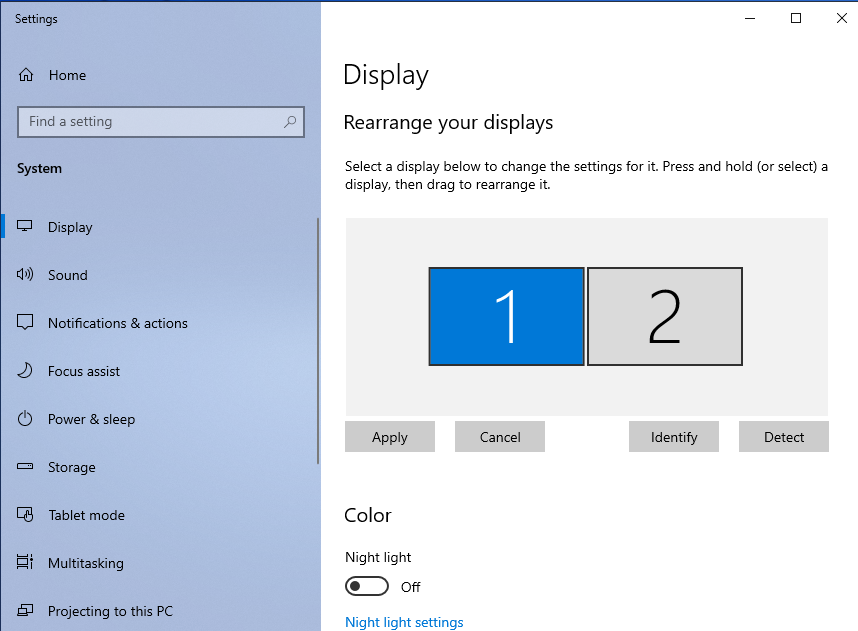
The layout below will allow you to move from one monitor to the other – left to right and back.
Straight To IT example
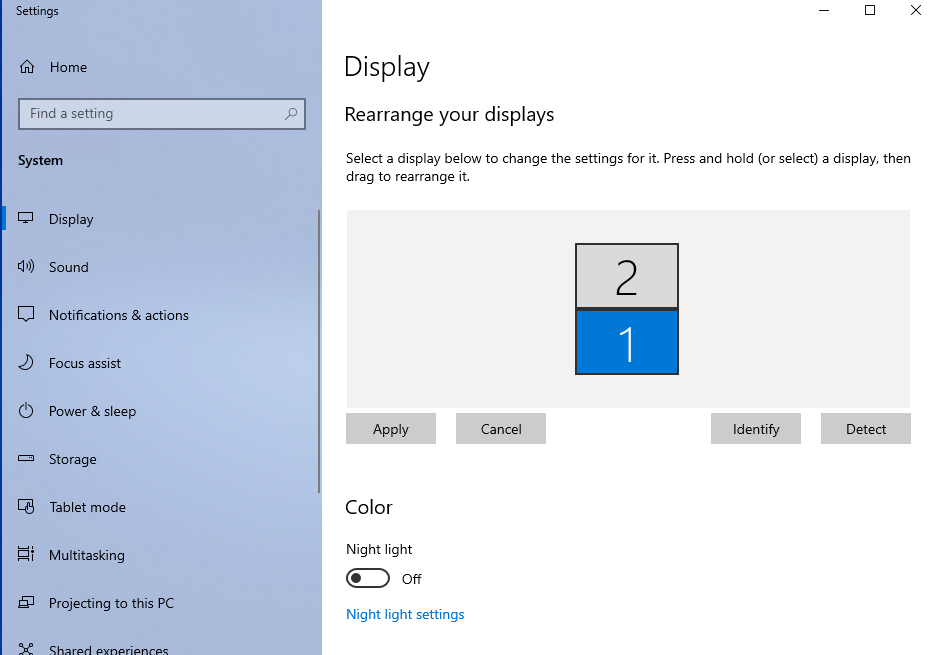
The layout below will allow you to move from one monitor to other – Upwards and downloads as if they were physically positioned on top of each other.
Using the mouse, select “Apply” when happy with the Desktop positioning.
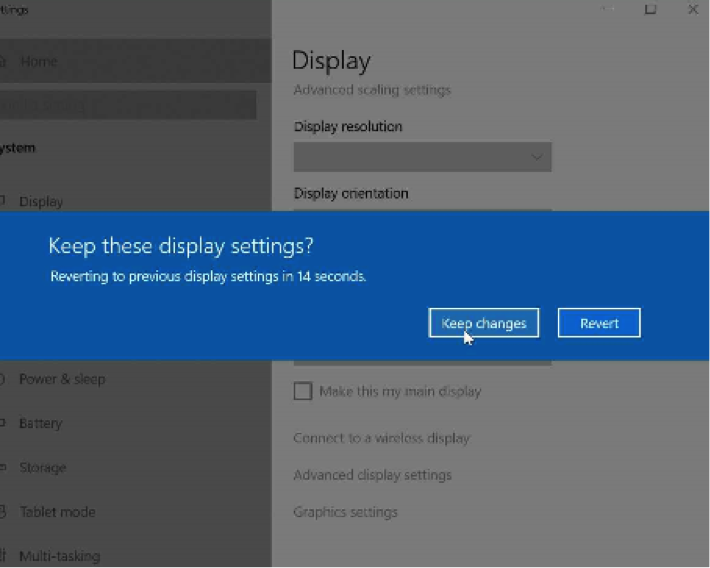
You will need be prompted to “Keep these display settings”
Extend these displays
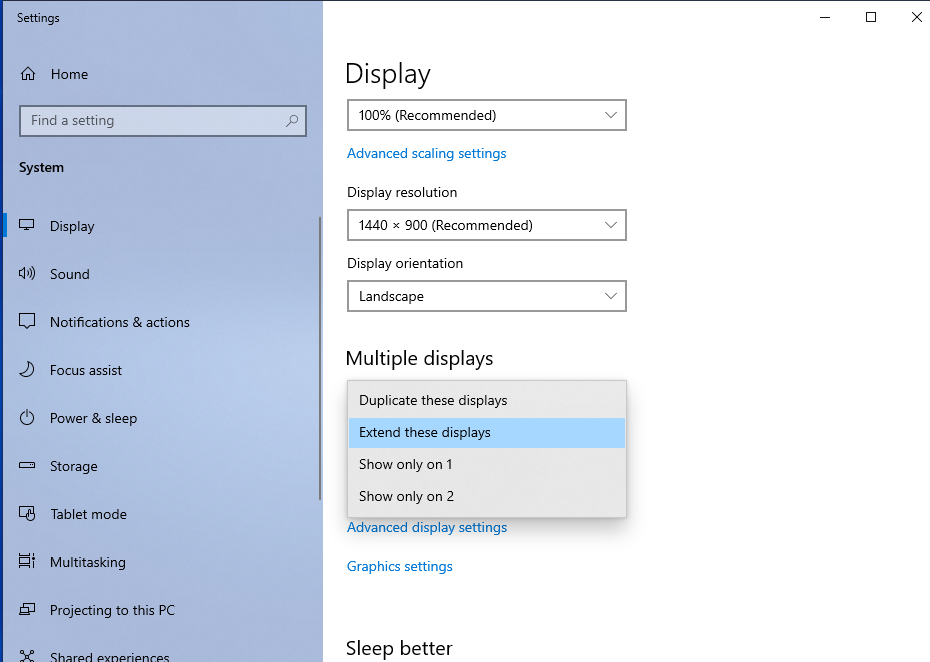
Using the mouse, Scroll down to “Multiple displays” from the drop down option and select “Extend these displays”
Straight To IT tip
Extend these displays allows you to multitask -utilising connected monitors.
Duplicate these displays so that each monitor will have the same display.
Show only on 1/2
Main Display
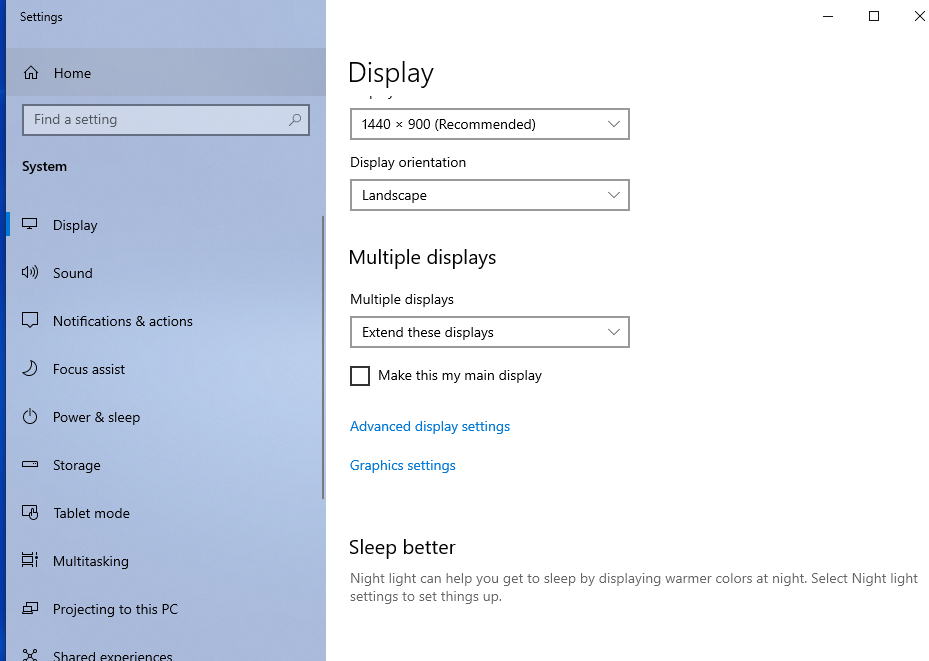
Using the mouse, Select which screen to become “The main display”
Straight To IT tip
Which screen will display the desktop shortcuts and Windows start Icon
Using the mouse, Scroll down Under “”Multiple displays” tick box “Make this main display”
Are you Connected?
Using the mouse, Right click on the Desktop select ” Display Settings”
Straight To IT tip
If “Display Settings” is not shown – check the cables.
Identify – will show a number on each of the connected screens so you know which number represents the physical screen its shown on.
Detect – to check for connected monitors.
Position Monitors
Using the mouse, Left click- Drag and Drop to position how you want to use connected monitors.
Straight To IT example
The layout below will allow you to move from one monitor to the other – left to right and back.
Straight To IT example
The layout below will allow you to move from one monitor to other – Upwards and downloads as if they were physically positioned on top of each other.
Using the mouse, select “Apply” when happy with the Desktop positioning.
You will need be prompted to “Keep these display settings”
Extend these displays
Using the mouse, Scroll down to “Multiple displays” from the drop down option and select “Extend these displays”
Straight To IT tip
Extend these displays allows you to multitask -utilising connected monitors.
Duplicate these displays so that each monitor will have the same display.
Show only on 1/2
Main Display
Using the mouse, Select which screen to become “The main display”
Straight To IT tip
Which screen will display the desktop shortcuts and Windows start Icon
Using the mouse, Scroll down Under “”Multiple displays” tick box “Make this main display”