Mac – Change Time & Date
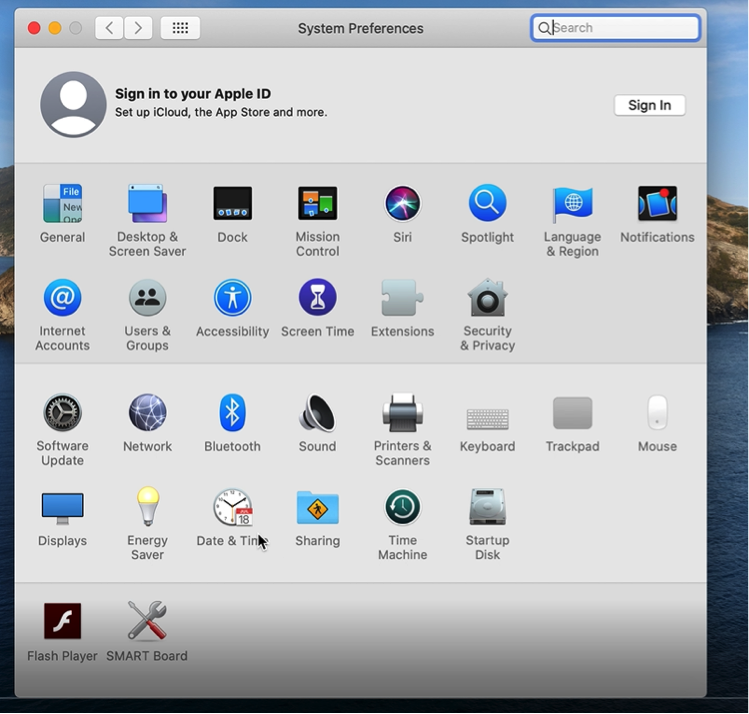
Navigate the curser to the dock, Select “System Preferences
Navigate the curser, Select “Date & Time
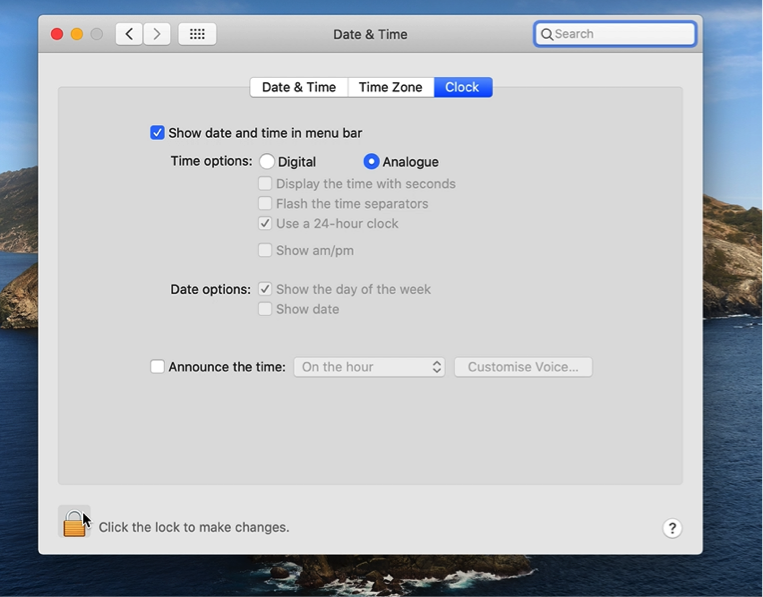
Navigate the curser, Select the Padlock “Click the lock to make changes
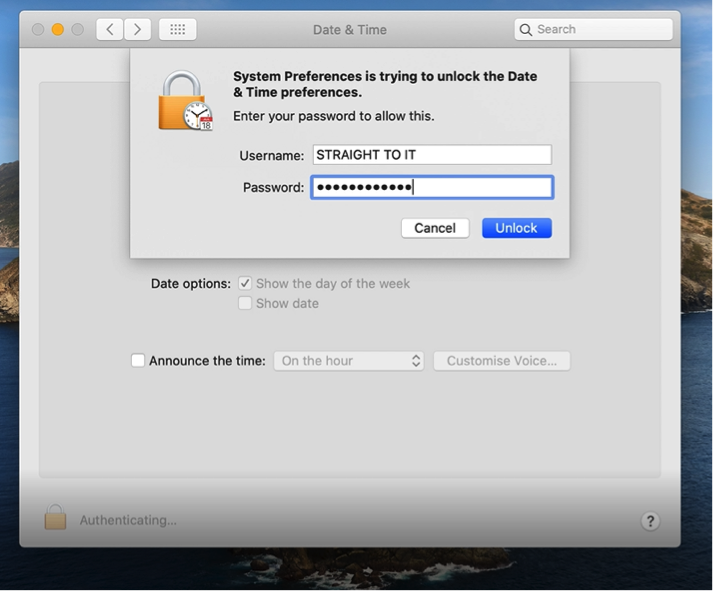
Using Keyboard, Enter login Password, click “Unlock”
Straight To IT tip, On newer versions of Mac you may be prompted to use Touch ID in the first instance instead of using your password
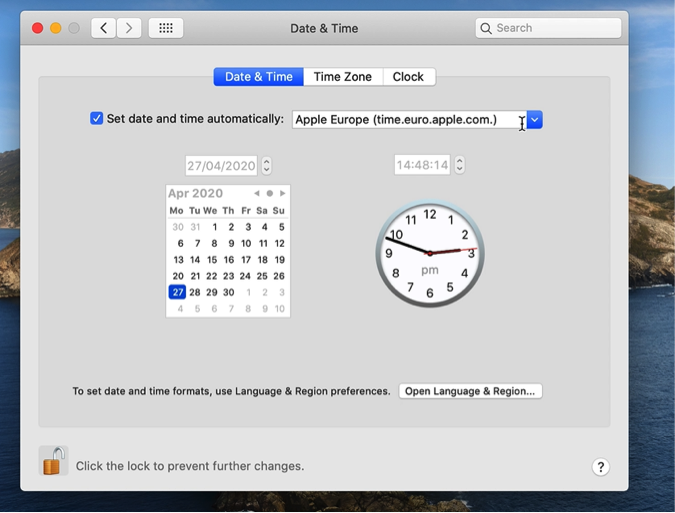
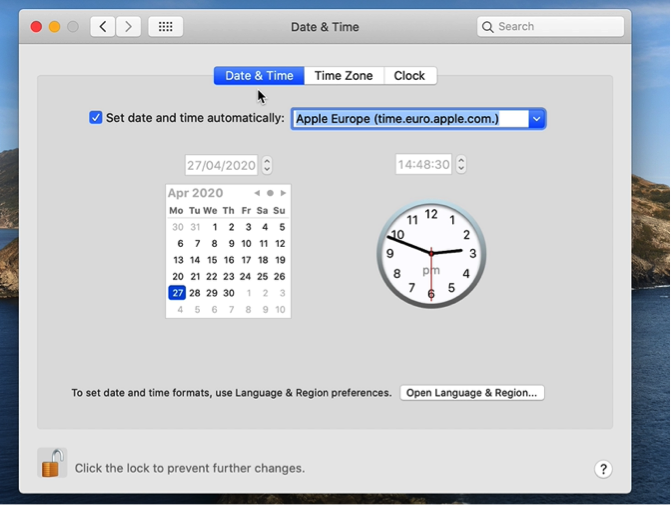
Navigate the curser, Select the “Date & Time” tab to make changes
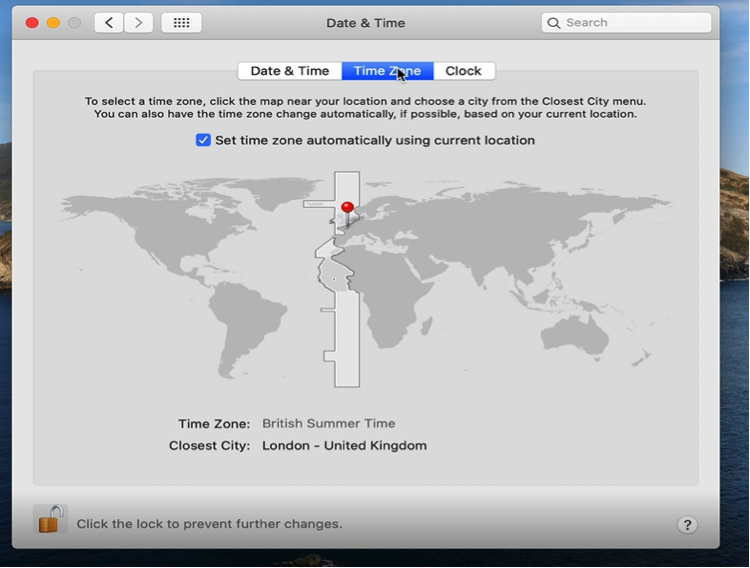
Navigate the curser, to the “Time Zone” tab to make changes
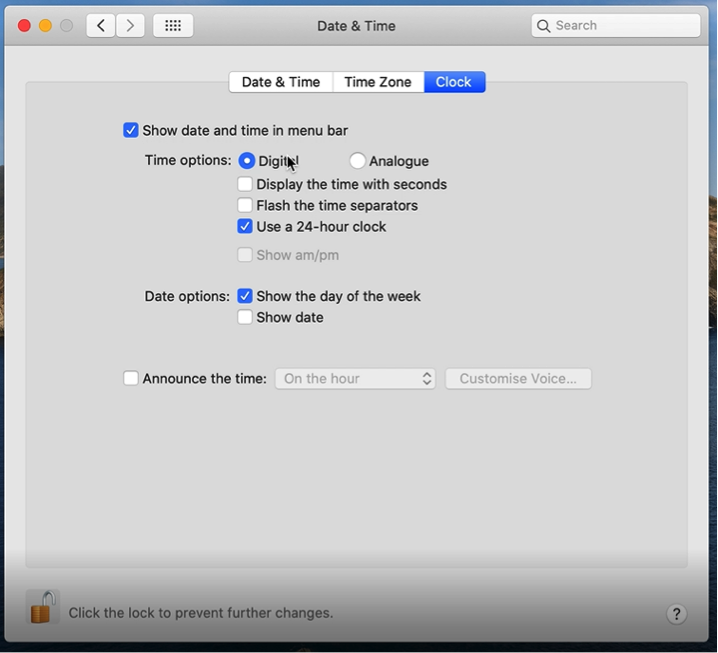
Navigate the curser, to the “Clock” tab to make changes
Navigate the curser, Select the Padlock “Click the lock to prevent further changes”
video
Navigate the curser to the dock, Select “System Preferences
Navigate the curser, Select “Date & Time
Navigate the curser, Select the Padlock “Click the lock to make changes
Using Keyboard, Enter login Password, click “Unlock”
Straight To IT tip, On newer versions of Mac you may be prompted to use Touch ID in the first instance instead of using your password
Navigate the curser, Select the “Date & Time” tab to make changes
Navigate the curser, to the “Time Zone” tab to make changes
Navigate the curser, to the “Clock” tab to make changes
Navigate the curser, Select the Padlock “Click the lock to prevent further changes”