Mac – Install Citrix Reciever
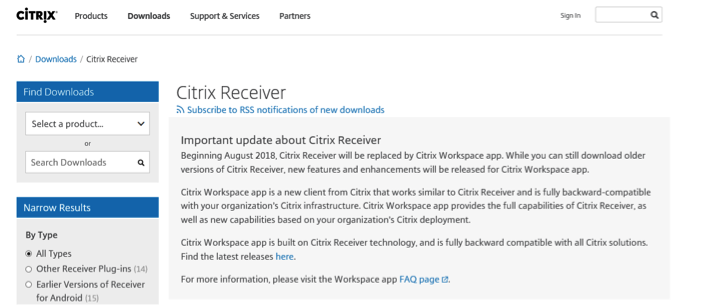
First you will need to navigate to the Citrix Website and Download Citrix Receiver for Mac.
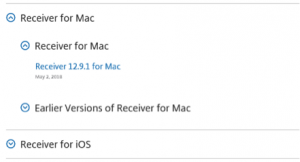
Scroll down the page and click the tab which says “Receiver for Mac”
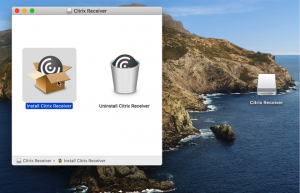
Using the cursor, Select the “Install Citrix Receiver ” Icon
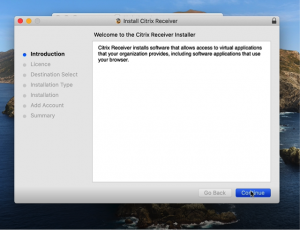
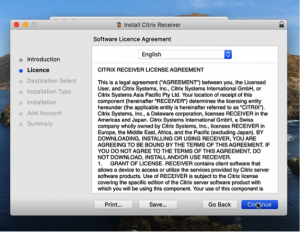
Using the cursor, Select “Continue ”
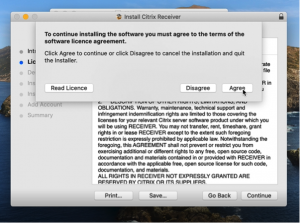
Using the cursor, Select “Agree ”
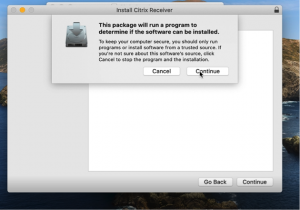
Using the cursor, Select “Continue ” Icon
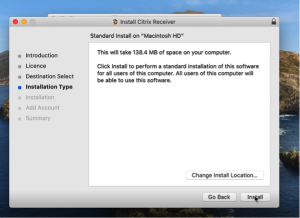
Using the cursor, Select “Install”
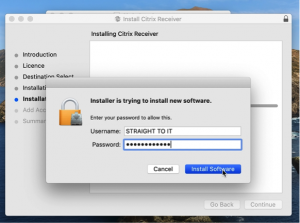
Using the keyboard, Enter Login Password, Then select “Install software”
Straight To IT tip, on newer versions of mac, you may be prompted to use Touch ID instead of your password in the first instance.
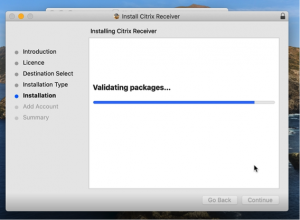
Installation Process
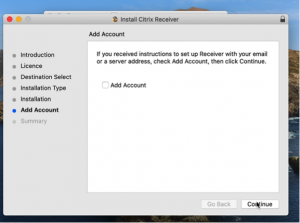
Using the cursor, Select “Continue”
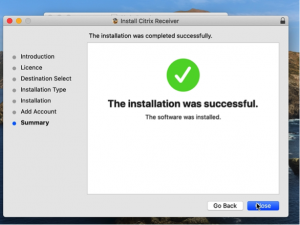
Using the cursor, Select “Close ”
Using the cursor, Select “Exit ”
First you will need to navigate to the Citrix Website and Download Citrix Receiver for Mac.
Scroll down the page and click the tab which says “Receiver for Mac”
Using the cursor, Select the “Install Citrix Receiver ” Icon
Using the cursor, Select “Continue ”
Using the cursor, Select “Agree ”
Using the cursor, Select “Continue ” Icon
Using the cursor, Select “Install”
Using the keyboard, Enter Login Password, Then select “Install software”
Straight To IT tip, on newer versions of mac, you may be prompted to use Touch ID instead of your password in the first instance.
Installation Process
Using the cursor, Select “Continue”
Using the cursor, Select “Close ”
Using the cursor, Select “Exit ”