Windows 10 – Create Encryption USB – Bitlocker
Straight To IT example, Using Bitlocker
*****************************
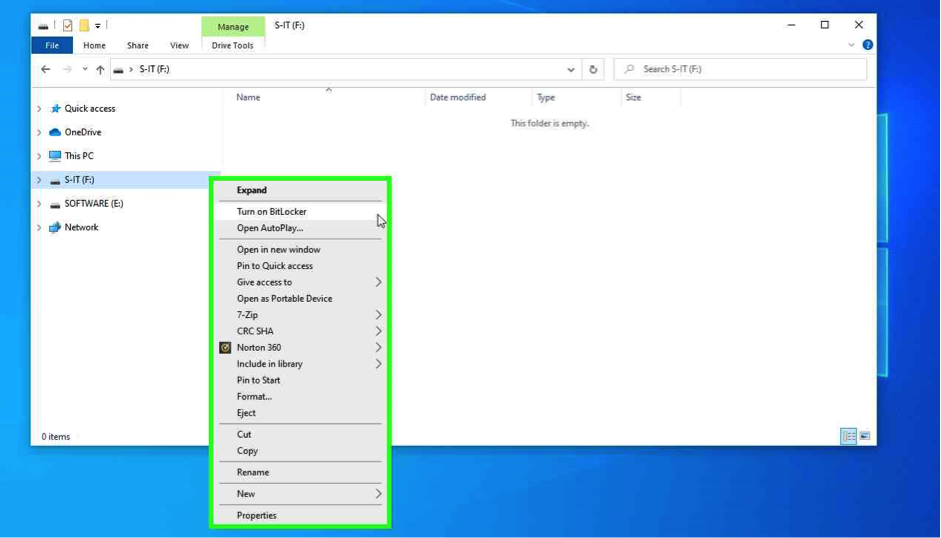
Using the Mouse, right click on the USB Stick , then right click and select “Turn on BitLocker”
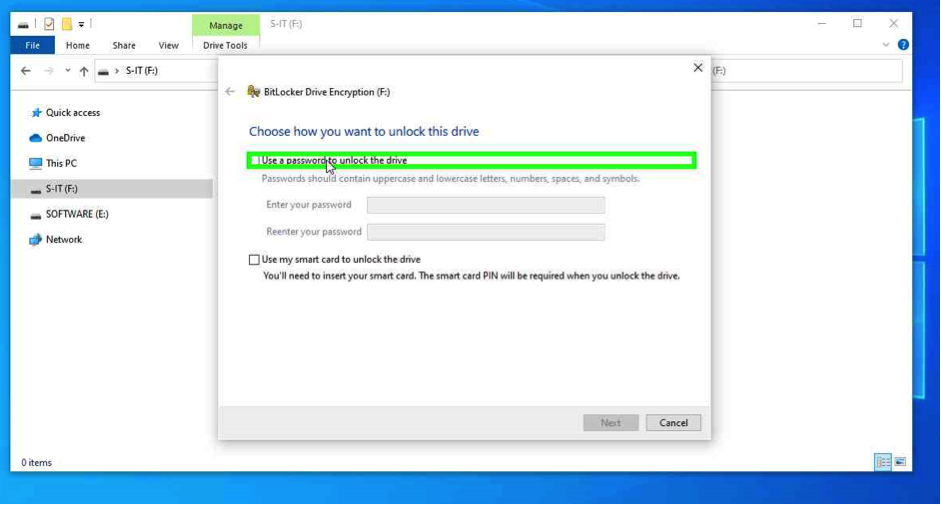
Using the mouse, tick “Use a password to unlock the drive”
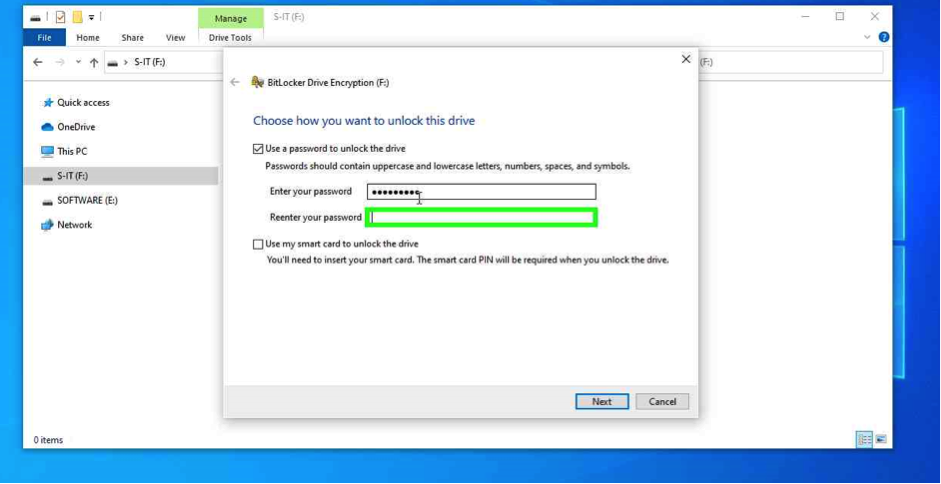
Using the keyboard, enter a password
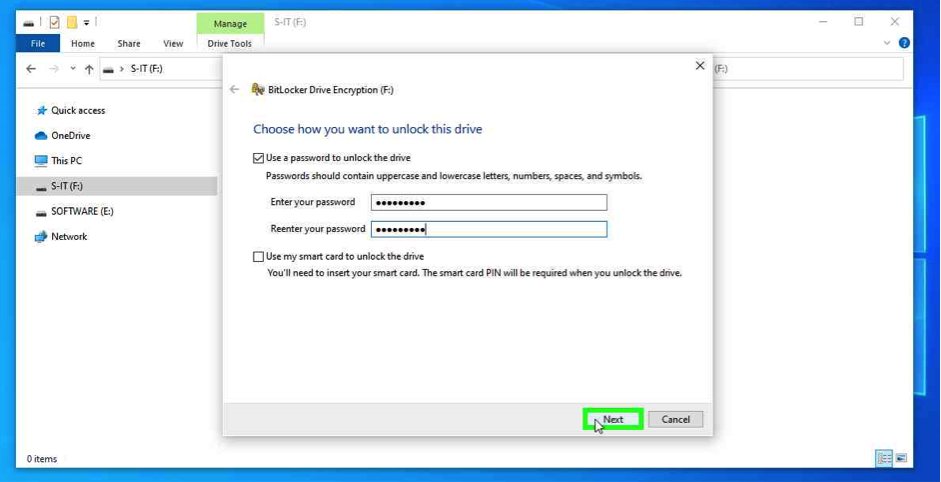
Using the mouse, select “Next”
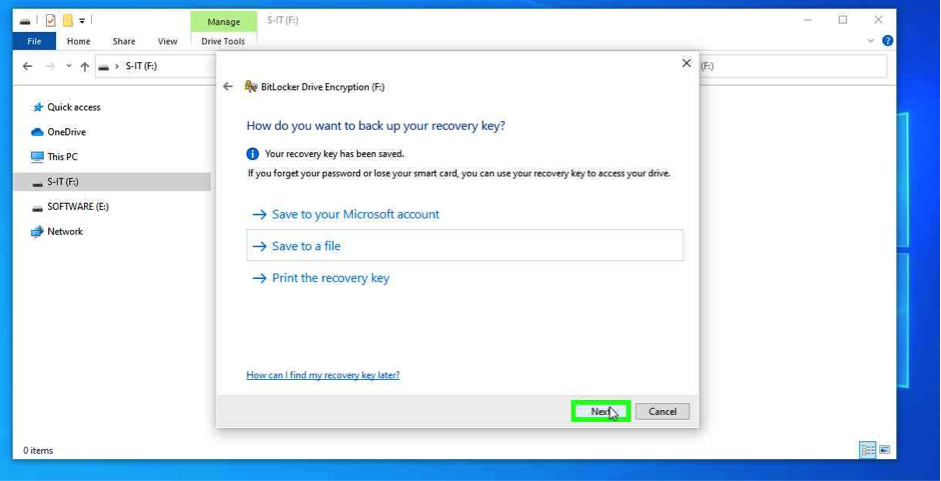
Straight To IT tip, we recommend “Save to a file” the Bitlocker Recovery Key, then emailing it yourself for additional keeping. You will need this if the password is forgotten.
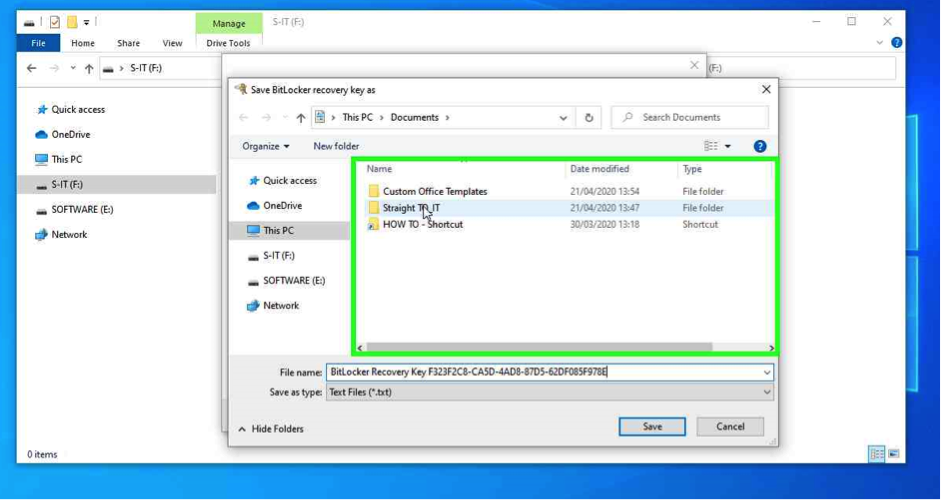
Using the mouse, nagivate to a network location to save the “Bitlocker Recovery Key”
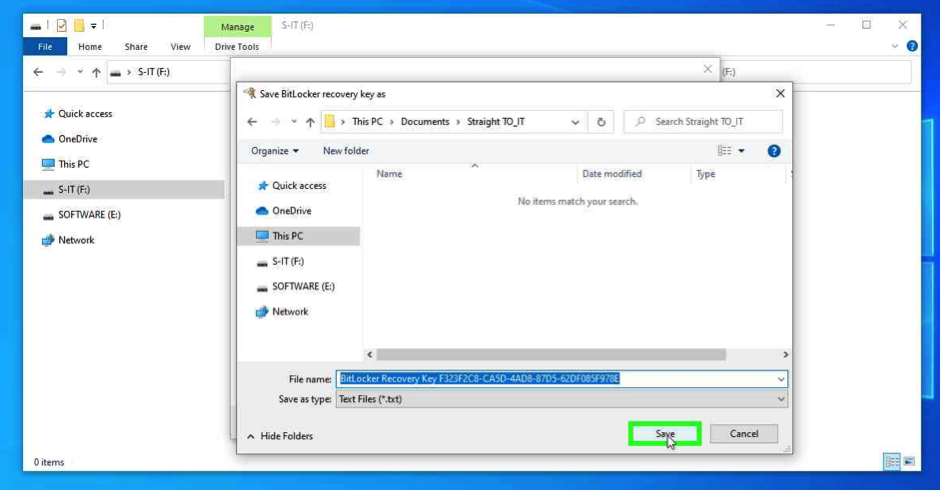
Using the mouse, select “Save”
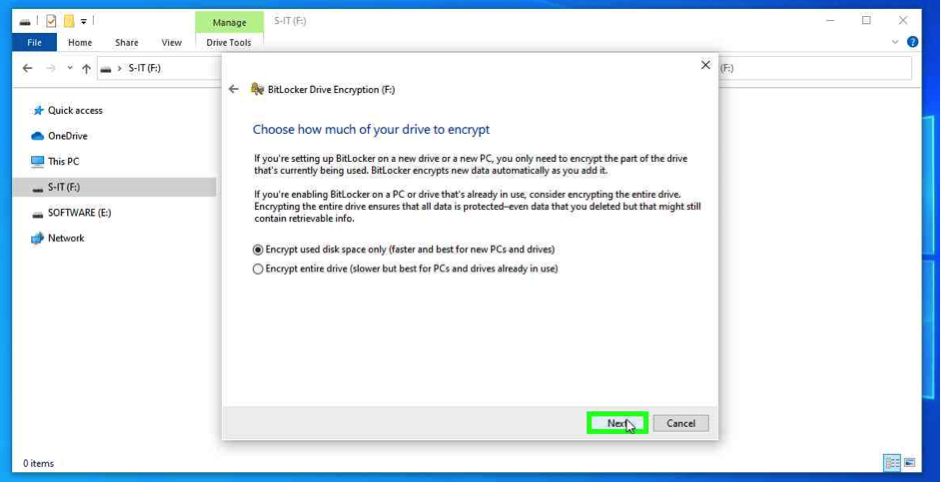
Using the mouse, select “Next”
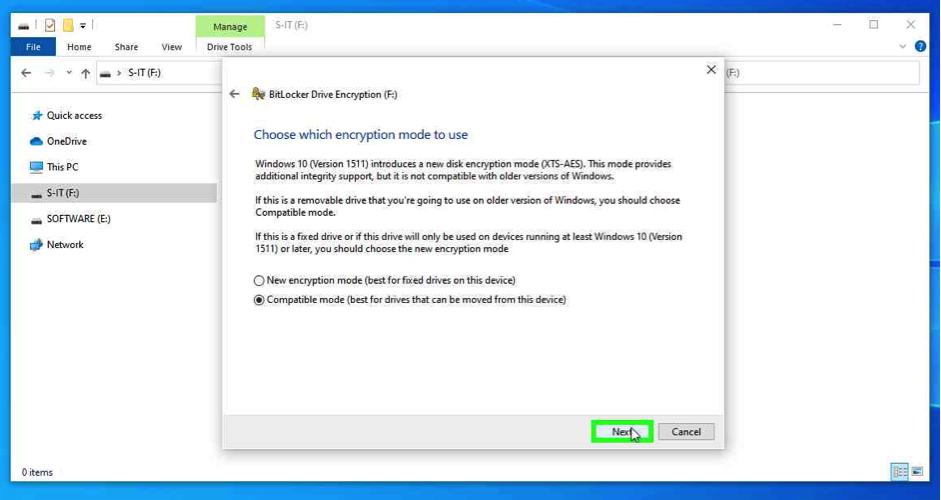
Straight To IT tip, example select “Compatible mode (best for drives that can be moved from this device)”, select “Next”
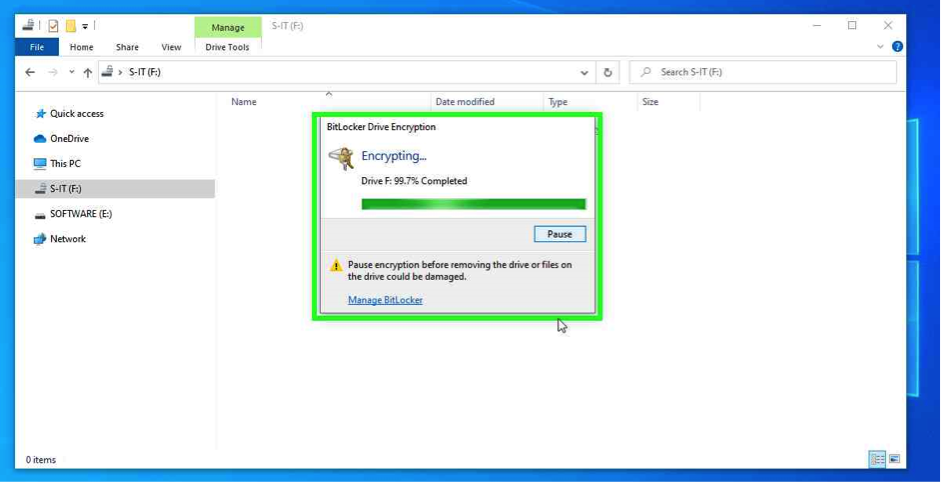
Encryption Process
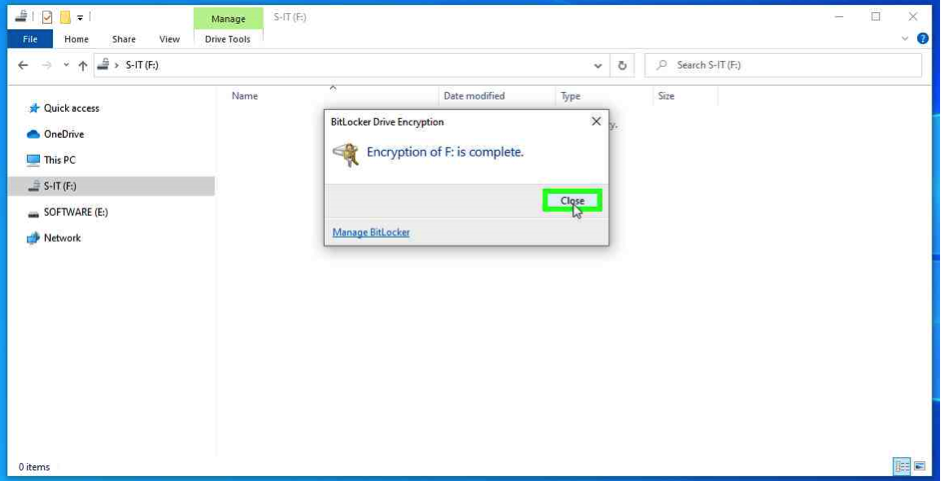
Using the mouse, select “Close”
Straight To IT example, Using Bitlocker
*****************************
Using the Mouse, right click on the USB Stick , then right click and select “Turn on BitLocker”
Using the mouse, tick “Use a password to unlock the drive”
Using the keyboard, enter a password
Using the mouse, select “Next”
Straight To IT tip, we recommend “Save to a file” the Bitlocker Recovery Key, then emailing it yourself for additional keeping. You will need this if the password is forgotten.
Using the mouse, nagivate to a network location to save the “Bitlocker Recovery Key”
Using the mouse, select “Save”
Using the mouse, select “Next”
Straight To IT tip, example select “Compatible mode (best for drives that can be moved from this device)”, select “Next”
Encryption Process
Using the mouse, select “Close”