Windows 10 – Check for Windows Updates

Step By Step Guide
Video Tutorial
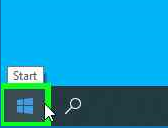
Using the mouse, left click “Start” Windows the icon

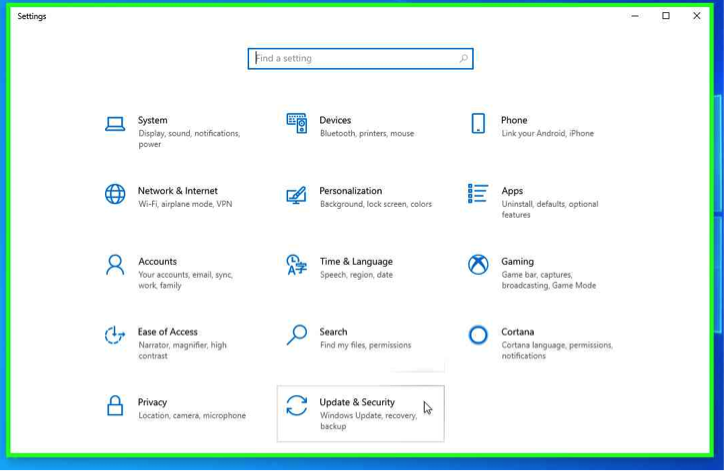
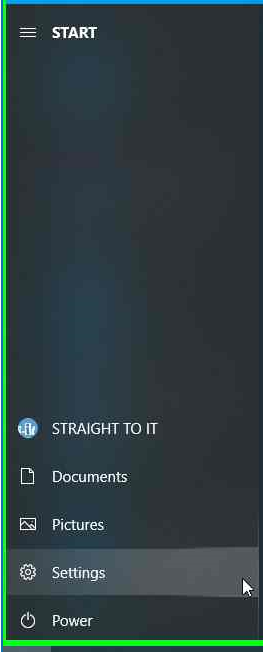
Using the mouse, select “Settings”

Using the Mouse, select “Update & Security”

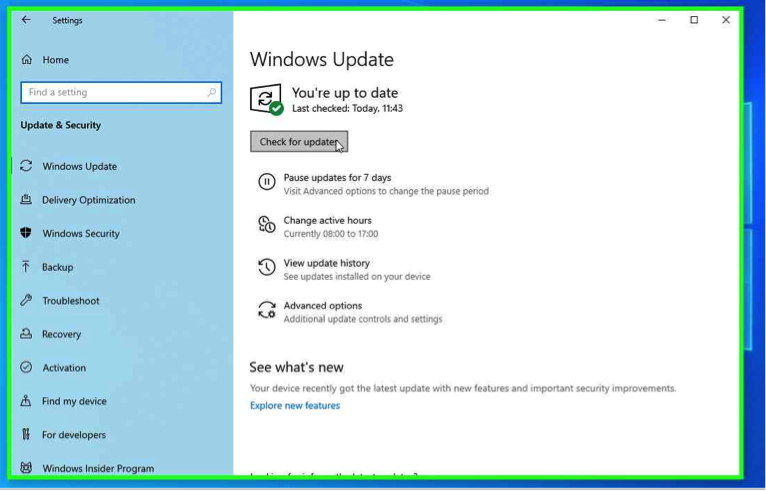
Using the mouse, click “Check for updates”

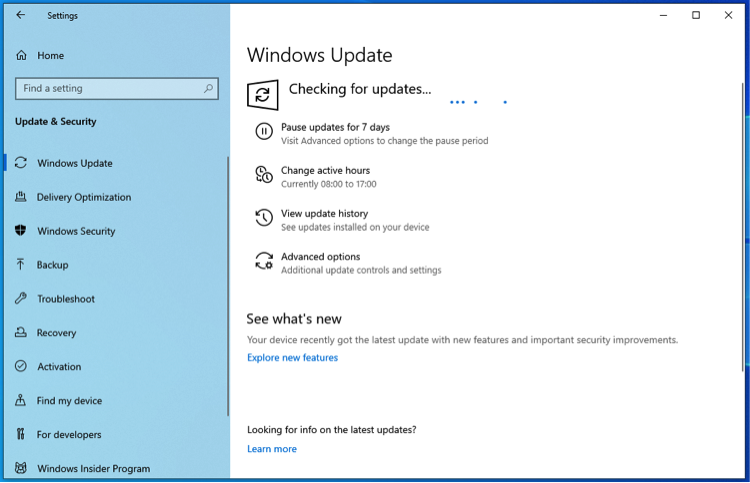
System will check for updates

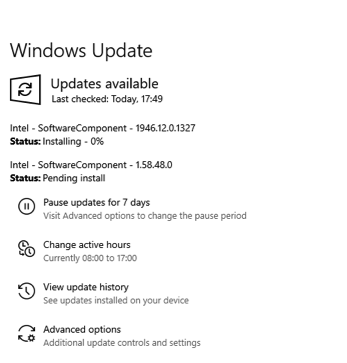
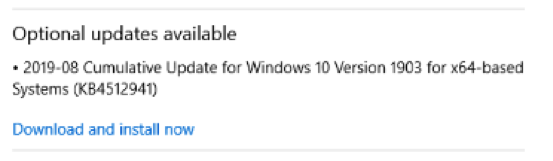
Require updates will be picked up, you may be required to restart your device and repeat the to process “Check for Updates” several times to fully complete the “Microsoft Windows” updates.

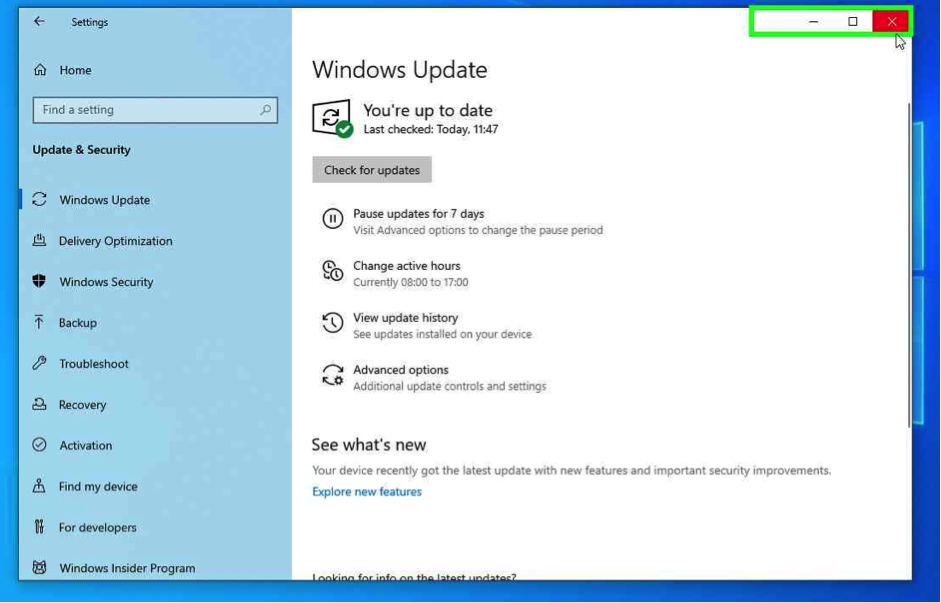
Once “You’re up to date” click exit.

Using the mouse, left click “Start” Windows the icon

Using the mouse, select “Settings”

Using the Mouse, select “Update & Security”

Using the mouse, click “Check for updates”

System will check for updates

Require updates will be picked up, you may be required to restart your device and repeat the to process “Check for Updates” several times to fully complete the “Microsoft Windows” updates.

Once “You’re up to date” click exit.