Mac – Manage Controls: Dock
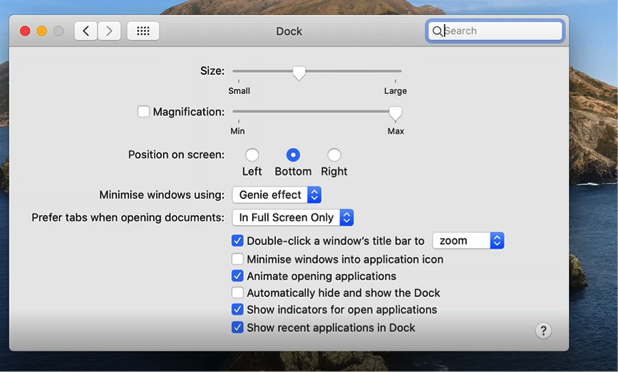
Manage Dock Preferences
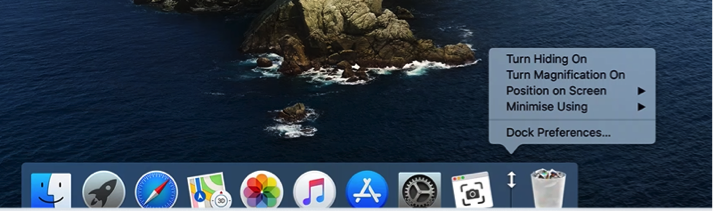
Navigate to the Dock, place the cursor on the line separating the recycling bin, the cursor will display a navigation arrow. Right click to get options
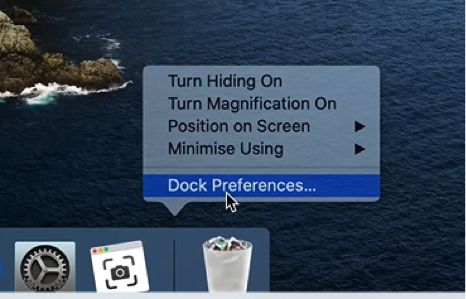
Navigate the cursor, select “Dock Preferences”
Add To Dock
Straight To IT example used here: Photos
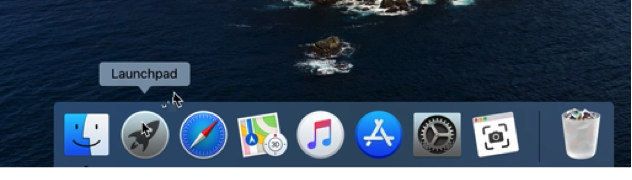
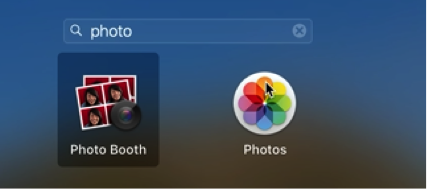
Navigate to the Dock, select “Launchpad”
Search for the application, “Photos”
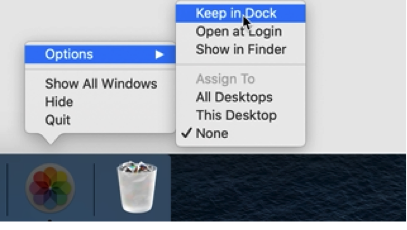
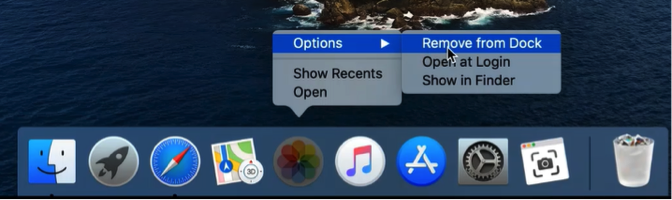
Navigate to the Dock, right click on the application icon. From “Options” select “Keep in Dock”
Position of my Dock
Left side
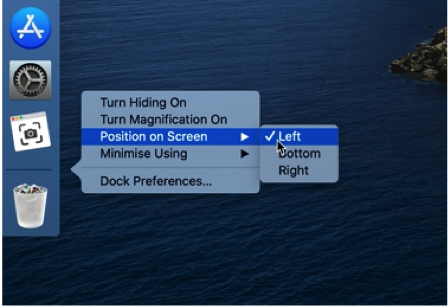
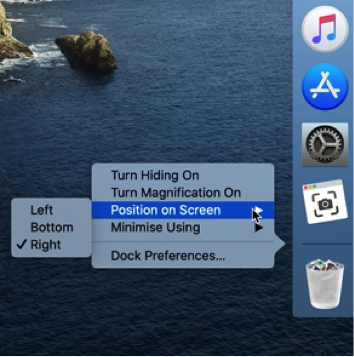
Navigate to the Dock, place the cursor on the line separating the recycling bin. Right Click, from “Position on Screen” select “Left”
Bottom side (default)
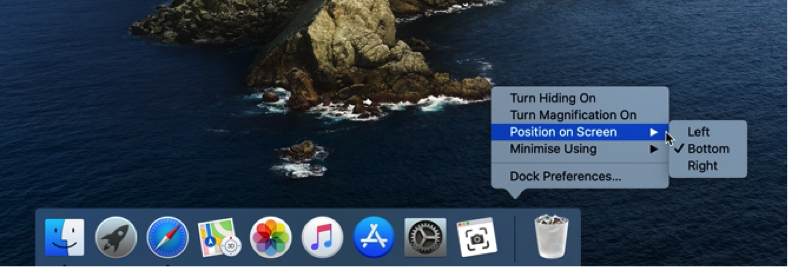
Navigate to the Dock, place the cursor on the line separating the recycling bin. Right Click, from “Position on Screen” select “Bottom”
Right side
Navigate to the Dock, place the cursor on the line separating the recycling bin. Right Click, from “Position on Screen” select “Right
Remove From Dock
Straight To IT example used here: Photos
Navigate to the Dock, right click on the application icon. From “Options” select “Keep in Dock”
Readjust the size of the Dock
Navigate to the Dock, place the cursor on the line separating the recycling bin, the curser will display a navigation arrow. Hold and drag to readjust the size of the Dock.
Turn Magnification On/Off
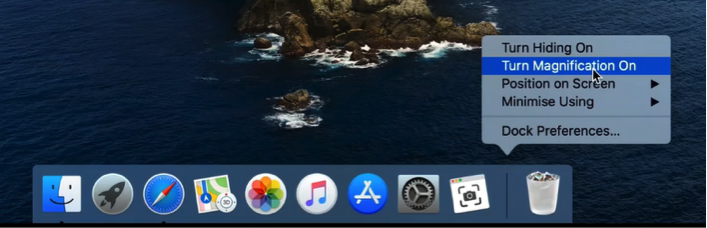
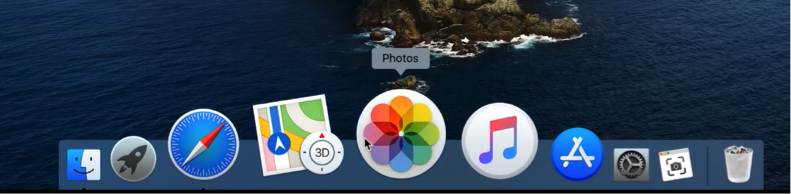
Navigate to the Dock and place the cursor on the line separating the recycling bin, the curser will display a navigation arrow, hold and drag to readjust the size of the Dock
Manage Dock Preferences
Navigate to the Dock, place the cursor on the line separating the recycling bin, the cursor will display a navigation arrow. Right click to get options
Navigate the cursor, select “Dock Preferences”
Add To Dock
Straight To IT example used here: Photos
Navigate to the Dock, select “Launchpad”
Search for the application, “Photos”
Navigate to the Dock, right click on the application icon. From “Options” select “Keep in Dock”
Position of my Dock
Left side
Navigate to the Dock, place the cursor on the line separating the recycling bin. Right Click, from “Position on Screen” select “Left”
Bottom side (default)
Navigate to the Dock, place the cursor on the line separating the recycling bin. Right Click, from “Position on Screen” select “Bottom”
Right side
Navigate to the Dock, place the cursor on the line separating the recycling bin. Right Click, from “Position on Screen” select “Right
Remove From Dock
Straight To IT example used here: Photos
Navigate to the Dock, right click on the application icon. From “Options” select “Keep in Dock”
Readjust the size of the Dock
Navigate to the Dock, place the cursor on the line separating the recycling bin, the curser will display a navigation arrow. Hold and drag to readjust the size of the Dock.
Turn Magnification On/Off
Navigate to the Dock and place the cursor on the line separating the recycling bin, the curser will display a navigation arrow, hold and drag to readjust the size of the Dock