Mac – Set up an Extended Desktop

Step By Step Guide
Video Tutorial
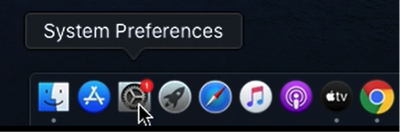
Navigate the cursor to the dock, Select “System Preferences”

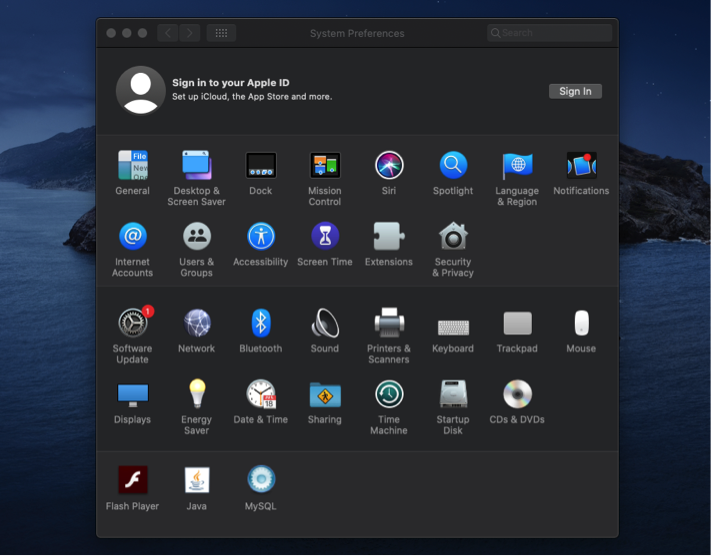
Using the curser, Select the “Display” Icon

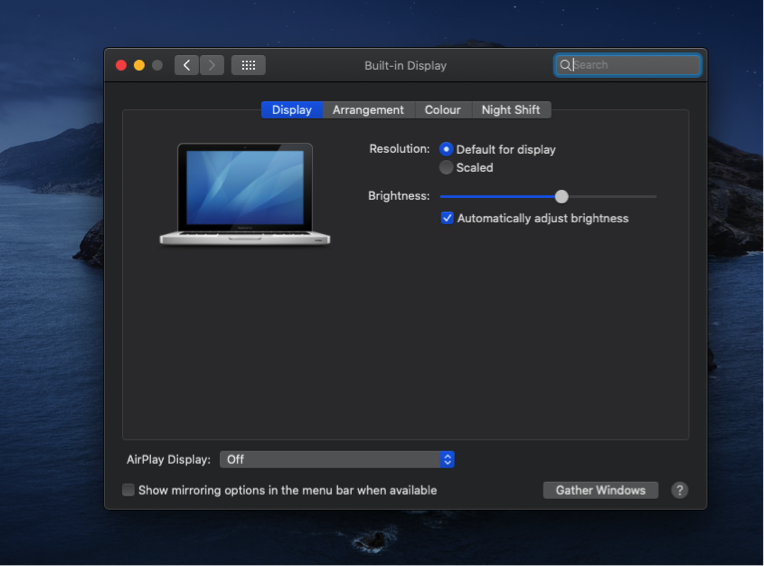
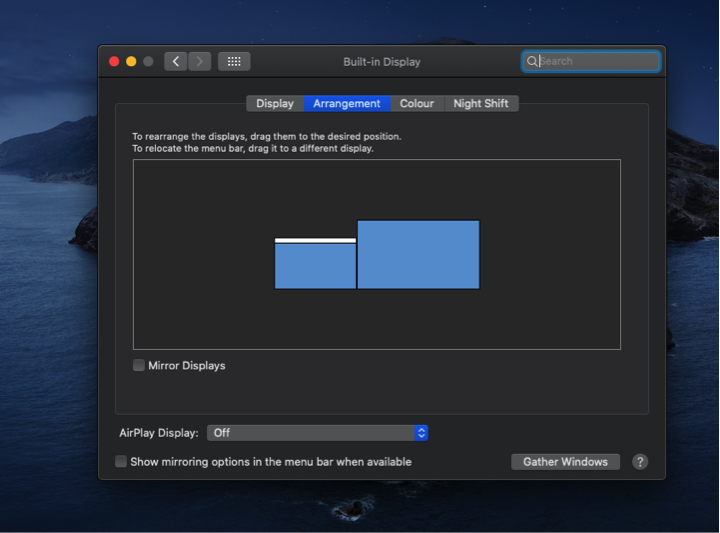
Using the cursor, Select the “Arrangment” tab. This will only show once an external monitor is detached. If not check the cabling.

Straight To IT example

Will allow you to move from one monitor to the other – left to right

Using the cursor, hold and drag to can position monitors connected.

Untick “Mirror Displays” for Extended Desktop to work.

Once complete using the cursor Exit the page.

Navigate the cursor to the dock, Select “System Preferences”

Using the curser, Select the “Display” Icon

Using the cursor, Select the “Arrangment” tab. This will only show once an external monitor is detached. If not check the cabling.

Straight To IT example

Will allow you to move from one monitor to the other – left to right

Using the cursor, hold and drag to can position monitors connected.

Untick “Mirror Displays” for Extended Desktop to work.

Once complete using the cursor Exit the page.