Windows 10 – Change The Date & Time

Step By Step Guide
Video Tutorial

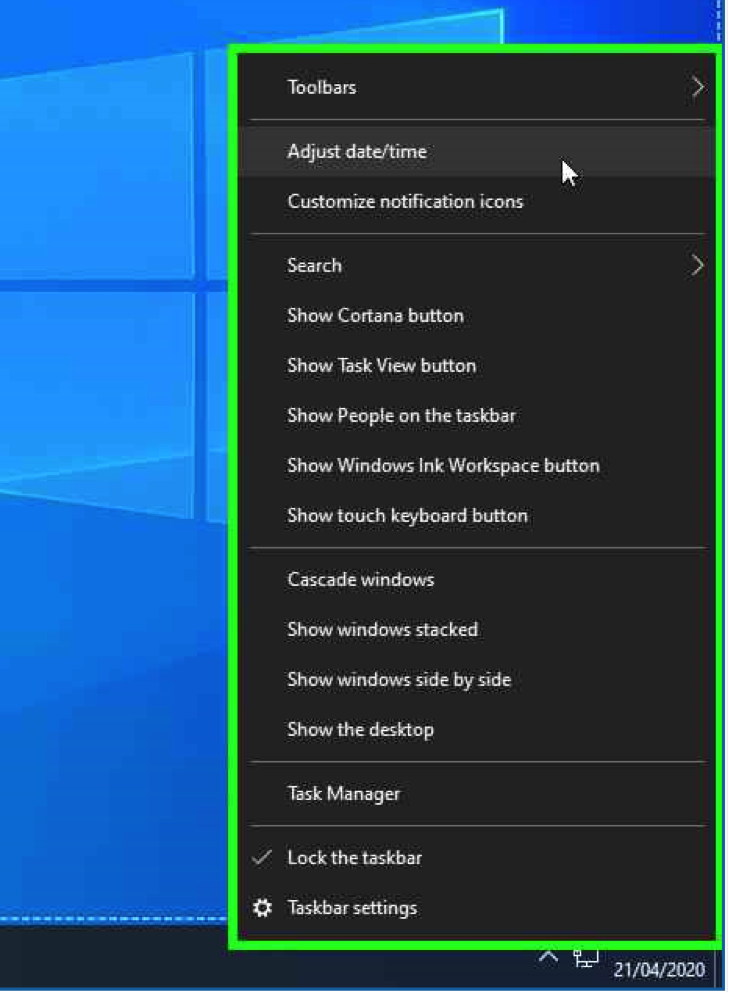
Using the Mouse, Right click on the Time & Date on the taskbar

Using the Mouse, Left click “Adjust date/time”

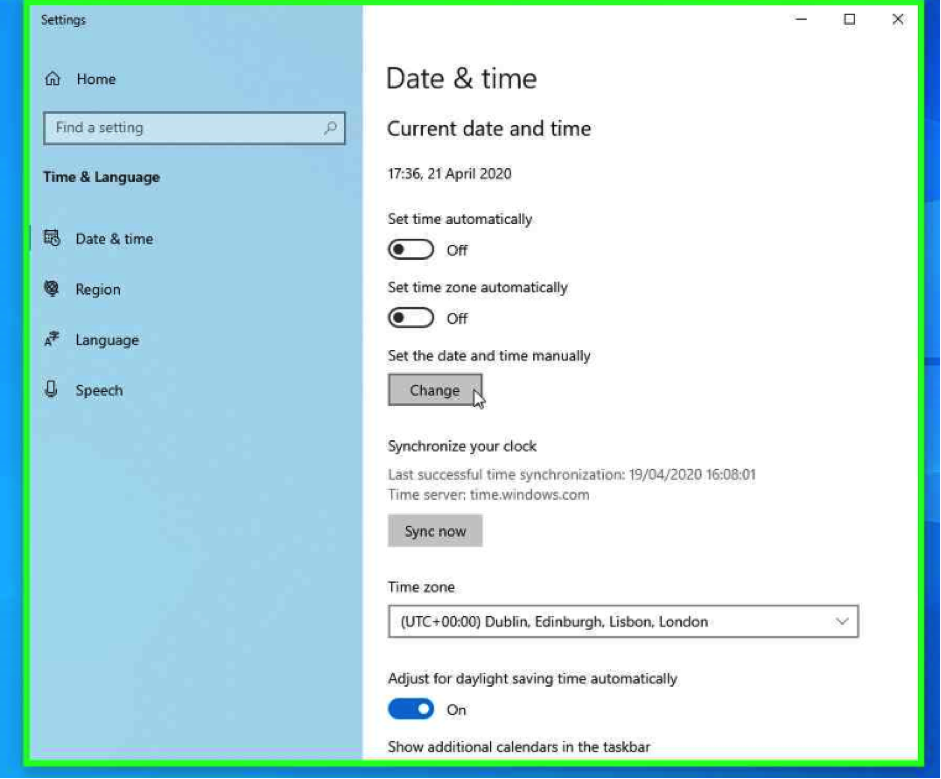
Using the mouse, click “Change”

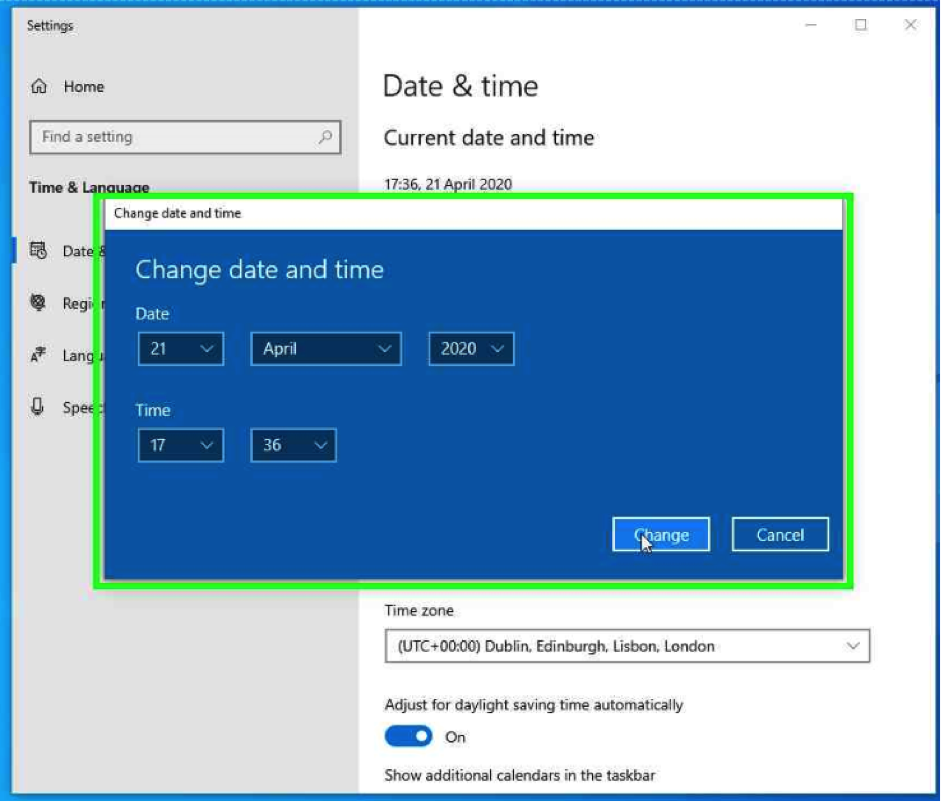
Using the Mouse, set the “Date & Time”, right click “Change”

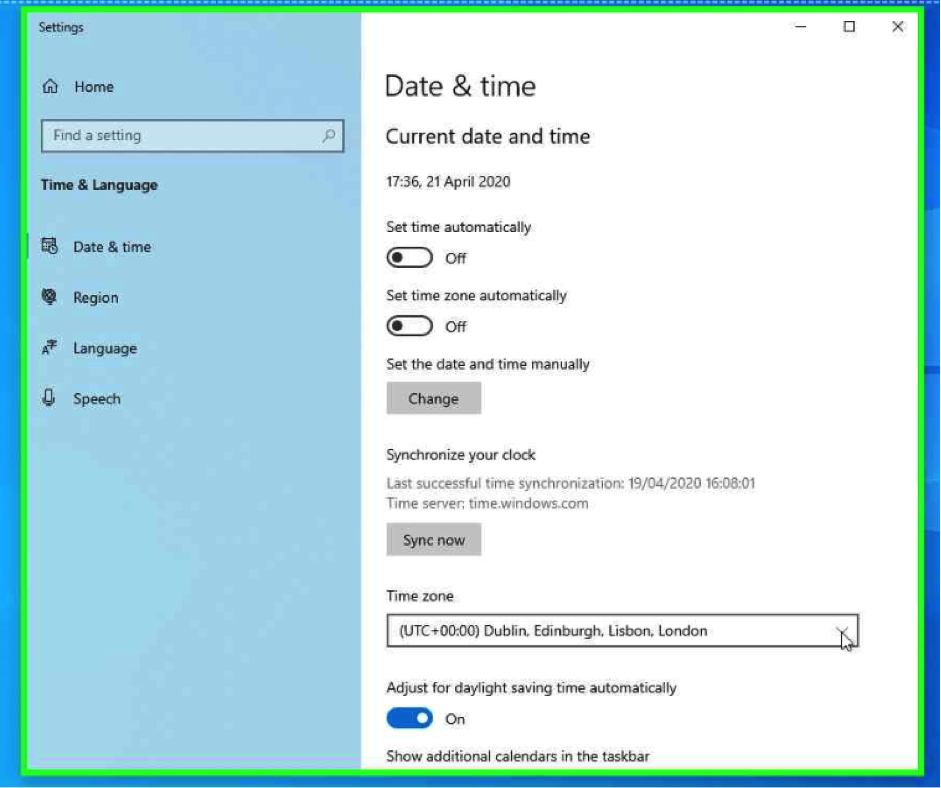
 Using the Mouse, right click “Time Zone”

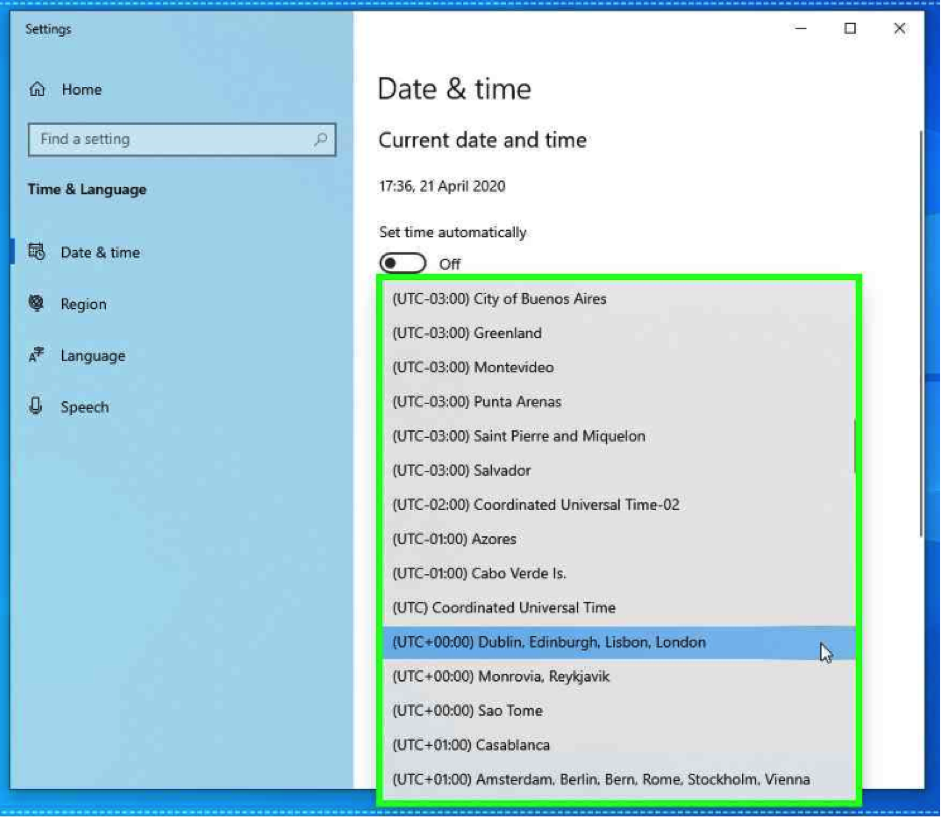
Using the Mouse, Select the relevant Time Zone.

Straight To IT example

(UTC + 00:00) Dublin, Edinburgh, Lisbon, London

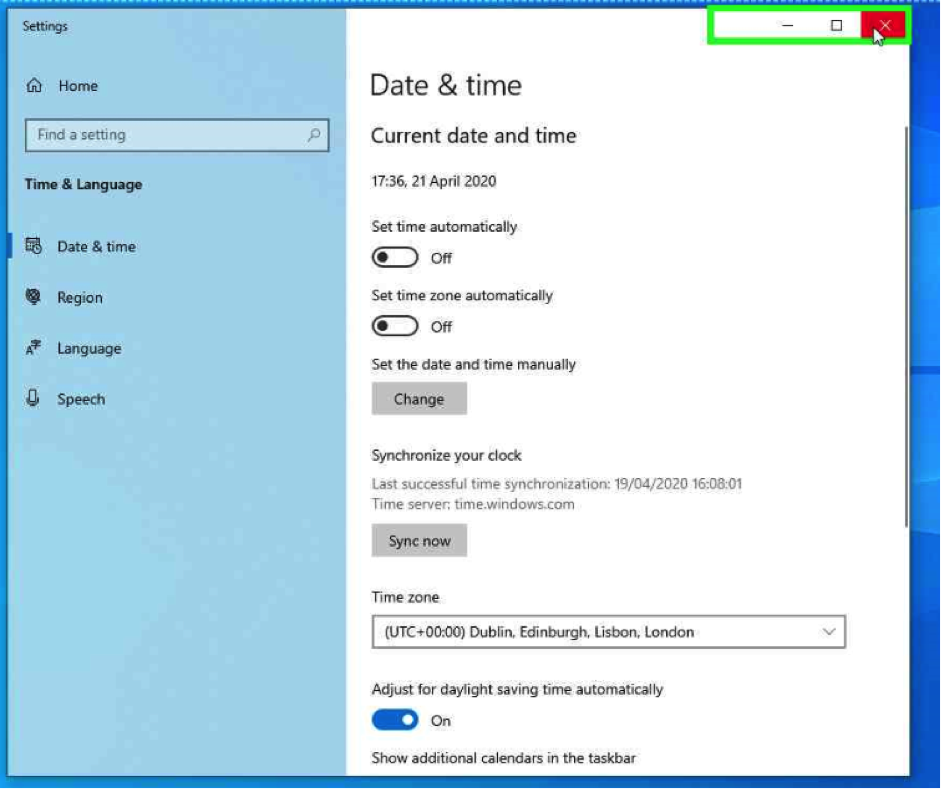
Using the Mouse, right click on “Exit”

Using the Mouse, Right click on the Time & Date on the taskbar

Using the Mouse, Left click “Adjust date/time”

Using the mouse, click “Change”

Using the Mouse, set the “Date & Time”, right click “Change”

 Using the Mouse, right click “Time Zone”

Using the Mouse, Select the relevant Time Zone.

Straight To IT example

(UTC + 00:00) Dublin, Edinburgh, Lisbon, London

Using the Mouse, right click on “Exit”