Windows 10 – Set Up Default Application
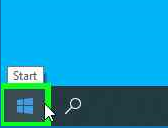
Using the mouse, left click “Start” windows Icon
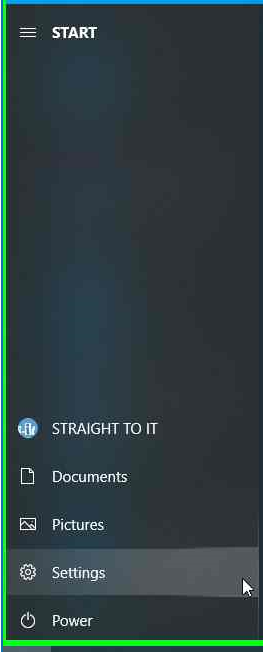
Using the mouse, select “Settings”
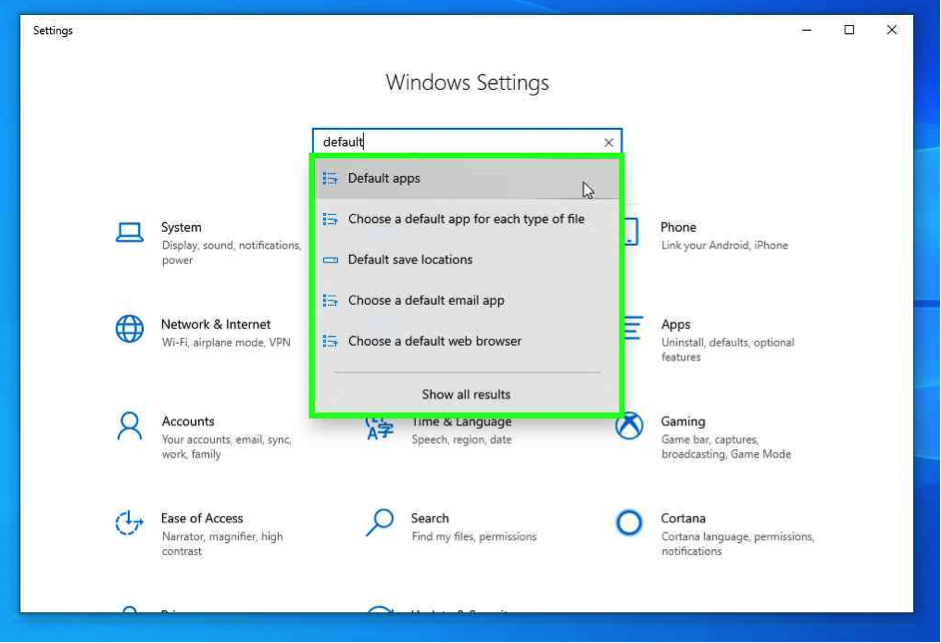
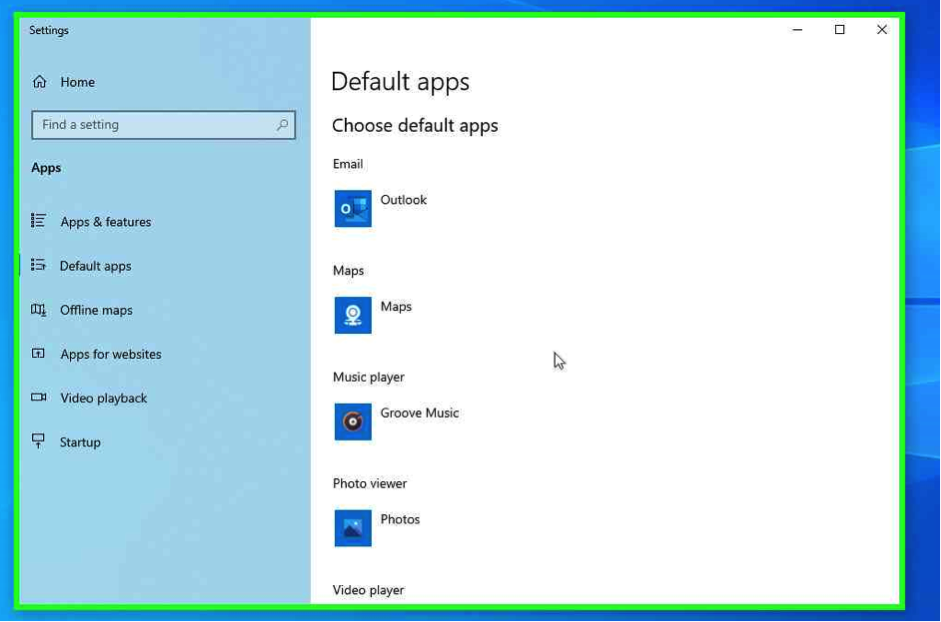
Using the keyboard enter “Default”, using the mouse select “Default Apps”
Straight to IT example
Set up Outlook as default for all emails to open through this Application.
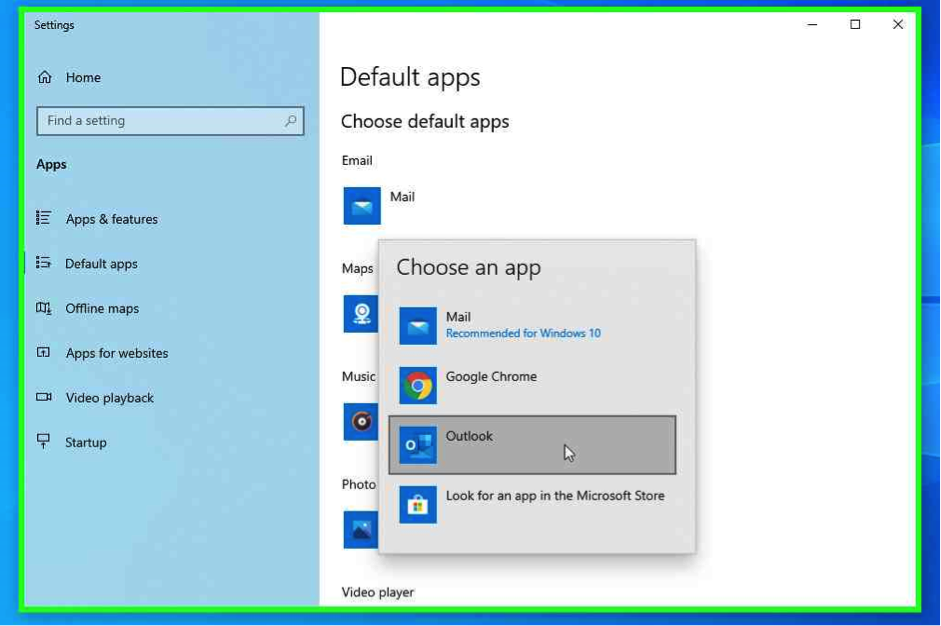
Using the mouse, click “Mail”, select “Outlook”
Straight To IT example
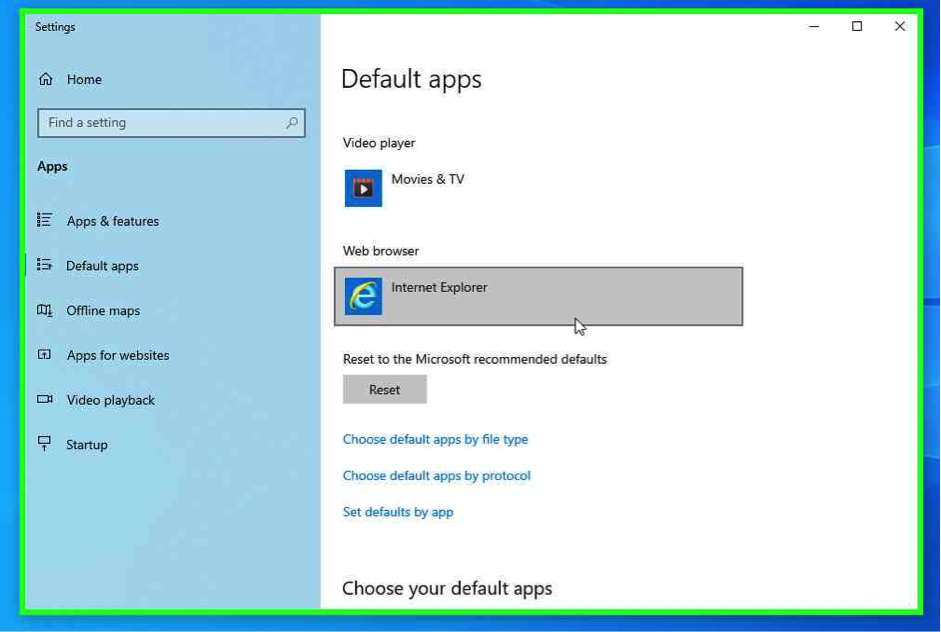
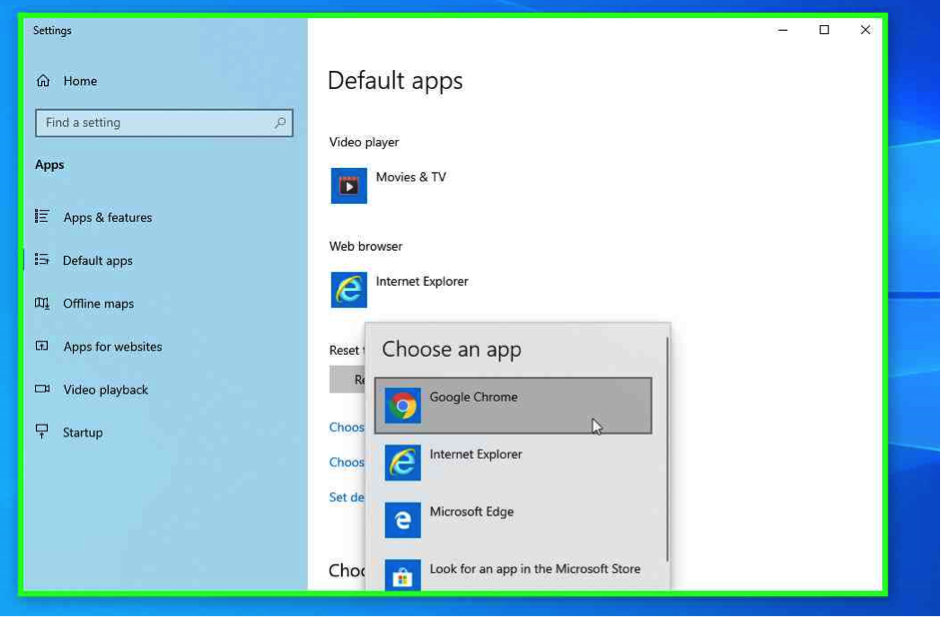
Setup Google as default “Web browser”.
Using the mouse, click on the current default “web browser”
Using the mouse, select “Google Chrome”
Straight To IT example
Set up PDF’s to open with the Adobe Reader Application by default.
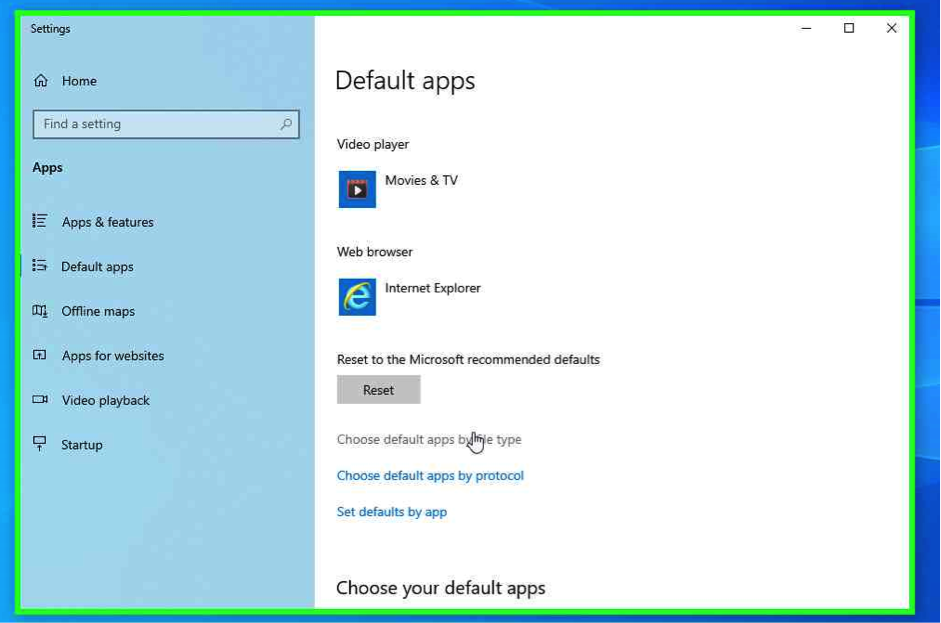
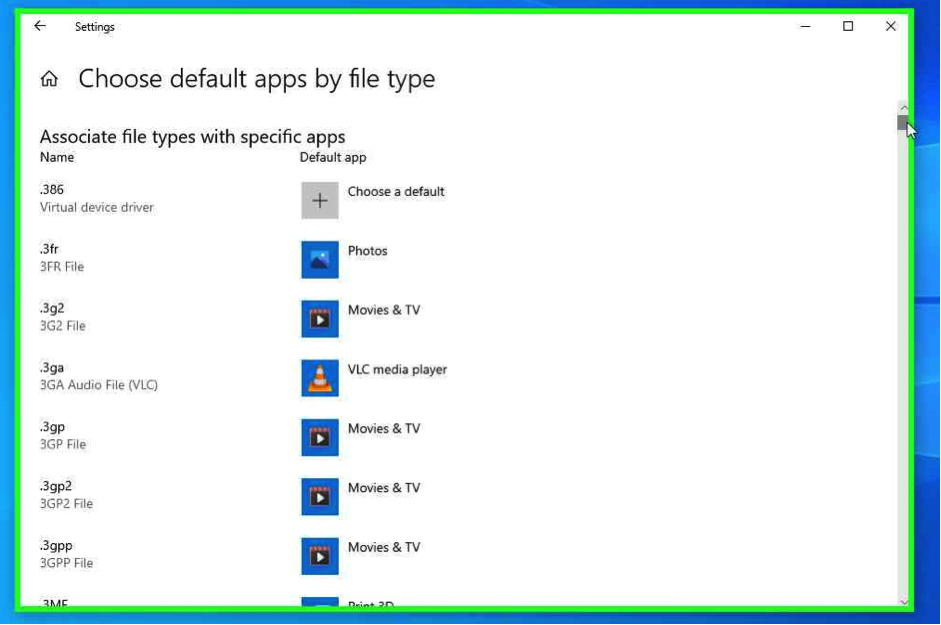
Using the mouse, click “Choose default apps by file type”
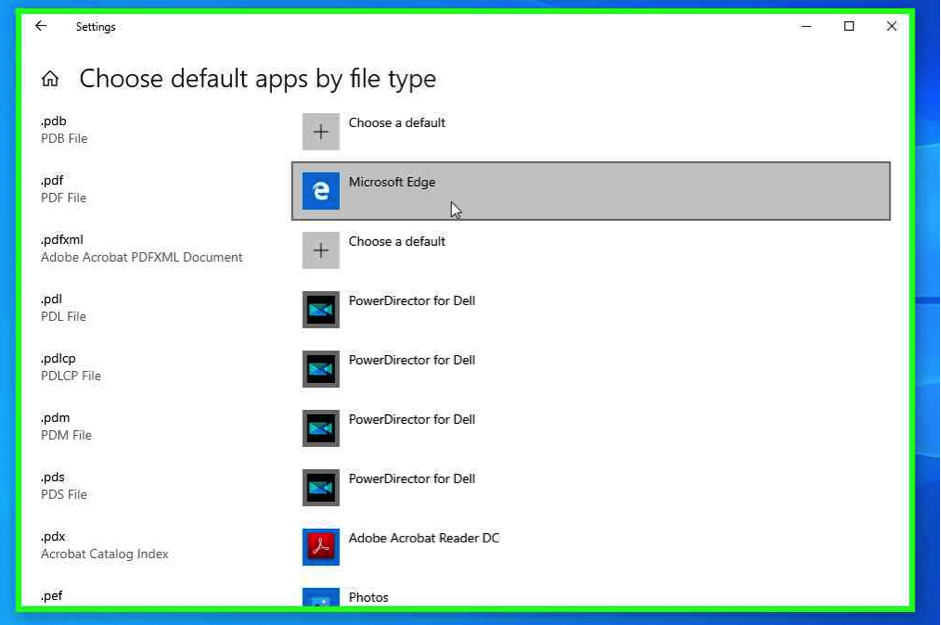
Using the mouse, search for the file format “PDF”
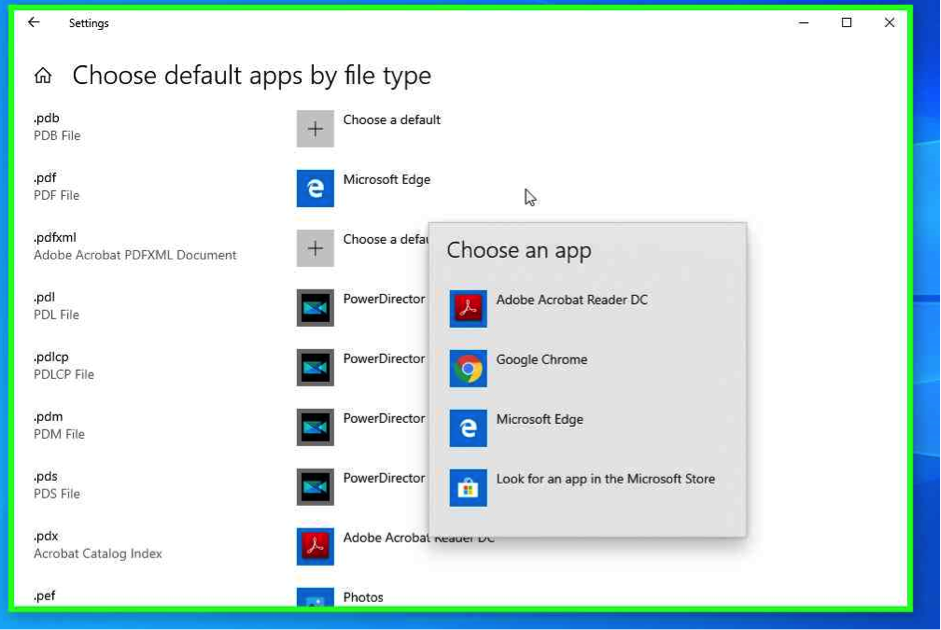
Using the mouse, right click the current default application
Using the mouse, select the target application.
select mouse, click “Exit”
Using the mouse, left click “Start” windows Icon
Using the mouse, select “Settings”
Using the keyboard enter “Default”, using the mouse select “Default Apps”
Straight to IT example
Set up Outlook as default for all emails to open through this Application.
Using the mouse, click “Mail”, select “Outlook”
Straight To IT example
Setup Google as default “Web browser”.
Using the mouse, click on the current default “web browser”
Using the mouse, select “Google Chrome”
Straight To IT example
Set up PDF’s to open with the Adobe Reader Application by default.
Using the mouse, click “Choose default apps by file type”
Using the mouse, search for the file format “PDF”
Using the mouse, right click the current default application
Using the mouse, select the target application.
select mouse, click “Exit”